Teachers can customize various assessment and scoring settings when assigning an assessment their class(es).
ℹ️ Assessment tools and settings vary across Great Minds curricula. You may not see all settings listed below when assigning an assessment.
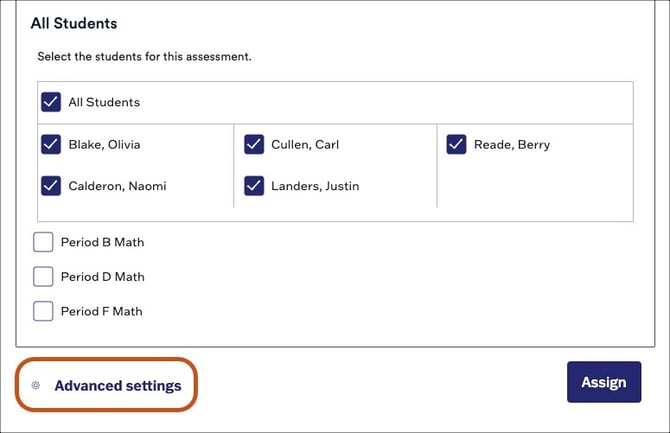
To modify assessment settings, select the Advanced settings option at the bottom left of the assign window.
ℹ️ Advanced assessment settings are not available for the following assessment types:
- Arts & Letters: Module Tasks, Listening Comprehension Assessments
- PhD Science Texas: Engineering Challenges, Science Challenges, Capstone Projects
- Wit & Wisdom: End of Module Assessments, Focusing Question Tasks
These assessments are administered to students offline and are assignable for teacher scoring and reporting only.
Assessment Settings
- Teachers can set a time limit for students to complete the assessment if desired.
- Teachers can allow access to a basic or scientific calculator tool.
- Teachers can allow students access to annotation tools, including a highlighter and note pad.
- If Allow Students to Check Answers is turned on, students can select a multiple choice option in an assessment, select Check answer, and immediately learn whether their answer is correct or incorrect.
Score Release Settings
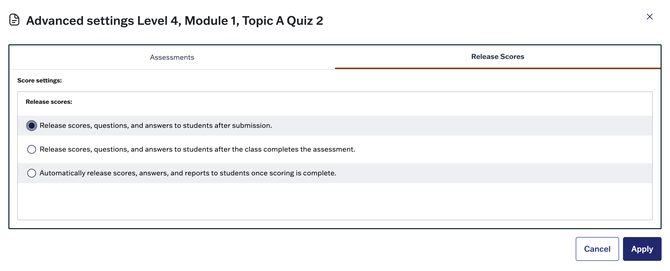
Select the Release Scores tab to choose when students can access their scores. You can choose one of the following options:
- Release scores when students submit their assessment
- Release scores after the entire class completes the assessment
- Release scores when scoring is complete.
💡 PhD Science Texas Scoring Recommendations:
-
Select after submission to support the End of Module Assessment or End of Spotlight Assessment debriefs outlined in the Teacher Edition. This will enable individual students to view their responses after submitting them and before scoring. Students can use rubrics to evaluate their responses.
-
Alternatively, the after the class completes the assessment option can also support the End of Module Assessment or End of Spotlight Assessment debriefs outlined in the Teacher Edition. However, this setting requires that all students who had the assessment assigned to them submit the assessment before any student can review their responses.