
Resources mentioned in the video:
Review Assignment Submissions
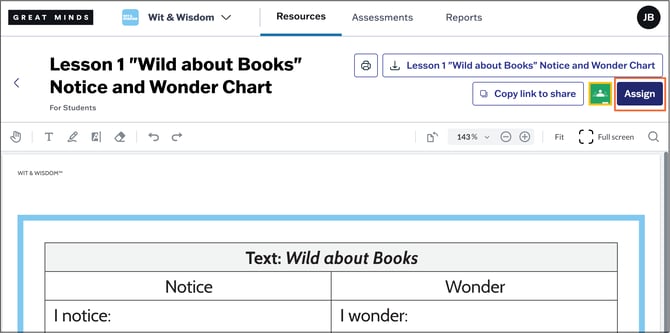
From the Resources page, teachers can assign student-facing resources to their classes, including PDFs and videos. Student-facing resources are denoted with a "For Students" label.
1. Select Resources from the main menu.

2. Locate the resource you wish to assign. Student-facing resources are denoted by the "For Students" label.

3. Click Assign at the top right.
4. Enter the following assignment details:
- Modify the Assignment name if desired.
- Provide Instructions for your students (optional).
- Submission type: Specify whether students will fill out the assignment online using the in-platform annotation tools or by uploading a file. If neither option applies, select "View only (no submission required)."

5. Select the class section(s) or individual student(s) you are assigning the resource to. Once all class(es) or student(s) have been chosen, click Next.

6. Set a Start date and Due date for the assignment. Optionally, you can select a time to open and/or close the assignment to students on the chosen start and due date.

6. Click the Assign button to assign the resource to your students.
💡Monitor student progress on assigned work from the Assigned Resources page.