
PDF and PowerPoint files can be downloaded from the platform and saved to your device.
💡If you do not have access to PowerPoint, you can download the file and convert to Google Slides.
Download Resources
1. Navigate to the Resources page.

2. Locate the resource you wish to download.
3. Click the Download icon on the resource card to download the file to your device.

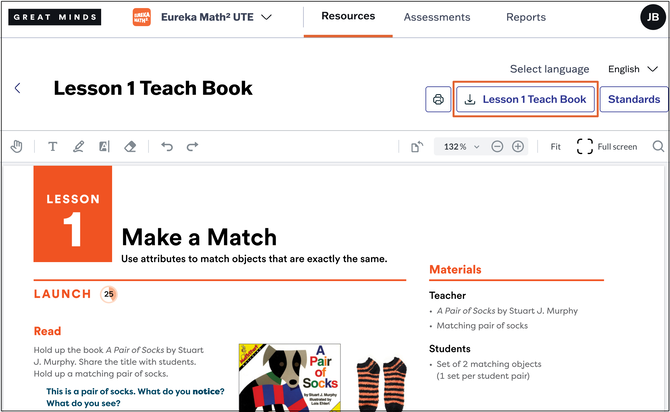
There's also a Download option at the top right when previewing a resource.
ℹ️ PDF downloads do not include annotations made using the in-platform annotation tools.
Convert PowerPoint Files to Google Slides
1. From your Google Drive, select +New from the left side menu.
2. Select File Upload from the menu.

3. Select the PowerPoint file you wish to upload from your device.
4. Once the upload is complete, select the file name to open the slide deck.

5. To convert the PowerPoint file to Google Slides format, open the File menu and select Save as Google Slides.
