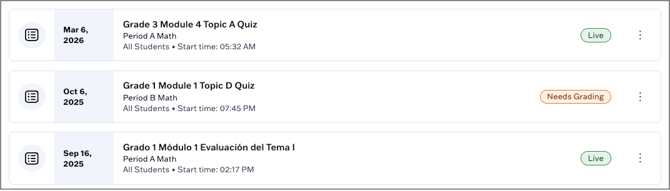
Teachers have three options when assigning an assessment to their class:
- Immediately open the assessment for students
- Schedule the assessment to launch automatically at a designated start date and time
- Manually launch the assessment after it's been assigned.
This article walks through how to manually launch an assessment after it's been assigned.
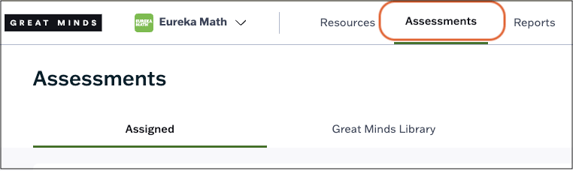
1. Select Assessments from the main menu.
2. Locate the assessment you wish to launch on the Assigned tab.
3. Click the Launch button to open the assessments for students.
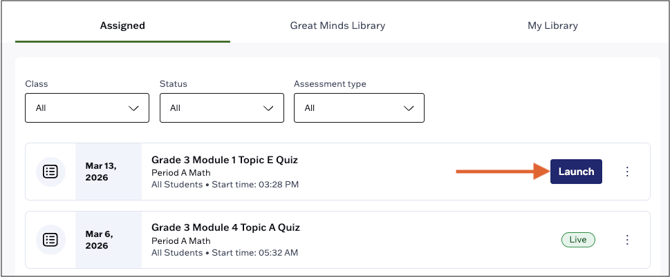
4. In the pop-up, click Yes, Launch to confirm.

The assessment now appears on the Assigned tab as "Live."