Once the text-to-speech setting has been enabled by their teacher, students can utilize text-to-speech (read aloud) and screen mask tools when taking assessments.
Use the Text-to-Speech Tool
Student can utilize the text-to-speech tool to have text and image alt text read aloud to them when taking assessments.
- Click to move the toolbar to another location on the page.
- Click to select the text you want read aloud.
- Play, Stop, or Pause the read-aloud.
- Adjust the tool settings if desired.

Use the Screen Mask Tool
Using the Screen Mask option, students can tint the page and hover over the portion of the page they need to focus on. They can click the Settings (gear) icon to adjust the opacity and color settings of the tool.
Select the Screen Mask icon on the toolbar to enable the tool.

Hover over the page on the area where you want to focus.

To disable the Screen Mask tool, click the Screen Mask icon on the toolbar once more.
Tool Settings
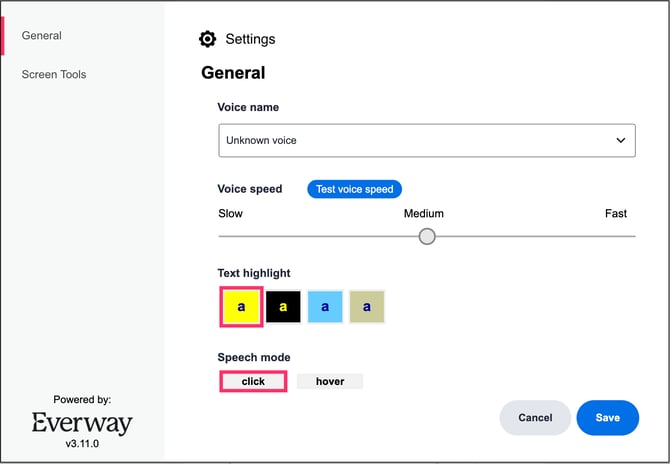
Students can select the Settings (gear) icon on the toolbar to adjust the following settings:
- Dictation speed: Slow, Medium, or Fast
- Text highlight color
- Speech mode: Choose to click or hover over the text you want read aloud.
- Select Screen Tools from the left side menu to adjust Screen Mask settings including opacity and color.