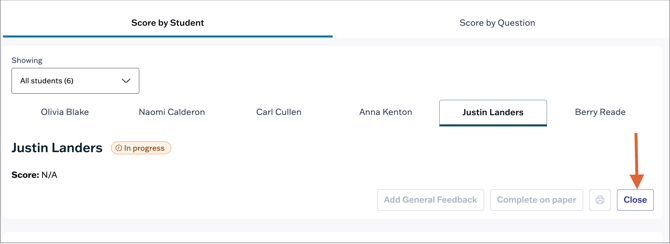
Teachers can close an assessment when they no longer want to accept student submissions. Once an assessment is closed, students can no longer access it, even if they have not yet started or submitted the assessment.
⚠️ You can reopen closed assessments for any students who were absent or did not complete their attempt.
⚠️ For students who partially completed the assessment, closing the assessment will automatically submit their attempt for scoring. Any items they did not attempt will count as skipped items and will receive a score of 0 which cannot be overwritten.
Close Assessments
Teachers can close an assessment for their entire class to stop accepting student submissions.
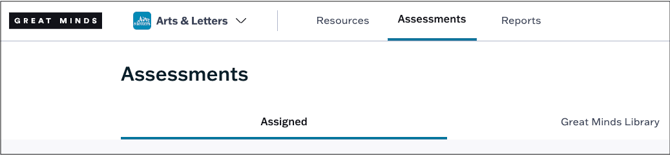
1. Select Assessments from the main menu.
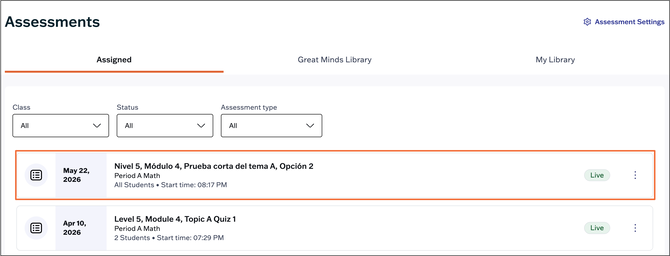
2. On the Assigned page, select the assessment you wish to close.
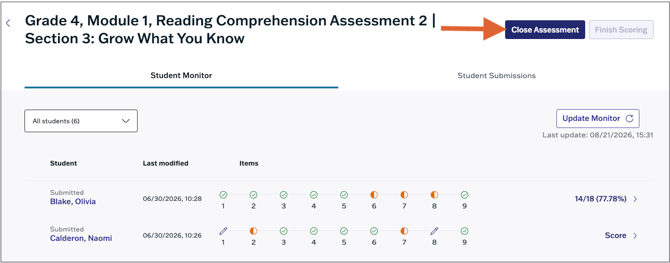
3. Click the Close Assessment button at the top right to close the assessment.
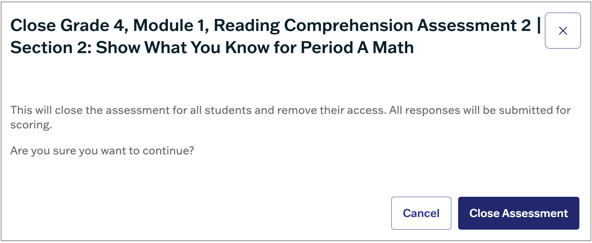
4. In the pop-up, select Close Assessment to confirm. Once the assessment closed, students can longer submit attempts and all student responses will be submitted for scoring.
Close a Student's Attempt
Teachers can also close an attempt for an individual student. This will automatically submit the student's attempt for scoring.
1. Select Assessments from the main menu.
2. On the Assigned tab, select the applicable assessment.
3. Select a student's name to close their attempt.
4. Click the Close button on the student's scoring page. Once closed, the student's attempt can now be scored.