
Some Great Minds curricula contain assessments that can be assigned to students in the platform, but students cannot complete them online. Students will complete these assessments offline/on paper, and teachers will score them digitally for reporting purposes. These assessments include:
- Arts & Letters: K-2 Module Tasks, K-2 End-of-Module Tasks, K-2 Module Listening Comprehension Assessments, 3-8 Research Log Module Tasks which includes:
- Grade 3 Module 4 Module Task 2
- Grades 4-8 Module 4 Module Task 1
- PhD Science Texas: Engineering Challenges, Science Challenges, Capstone Projects
- Wit & Wisdom: End of Module Assessments, Focusing Question Tasks
📣 Arts & Letters 2026-27 Update: Grade 3-8 students can complete Module Tasks and End-of-Module Assessments online. Module 1 assessments are available now. The remaining modules will follow on a rolling basis through the end of September. More information here.
Teachers will first assign the assessment to the desired class section(s). They can immediately begin scoring once the assessment has been assigned.
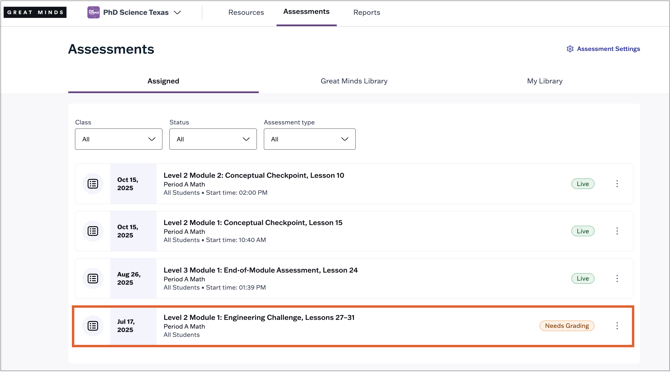
Navigate to the Assigned tab on the Assessments page and select the assessment that requires offline scoring.
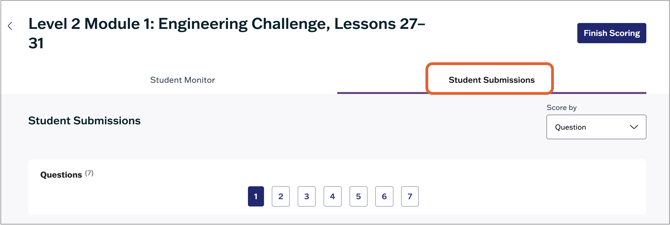
Select the Student Submissions tab to begin scoring.
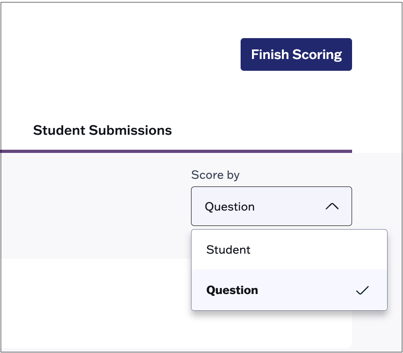
You have two options when scoring the assessment:
- Score by Student: Score the entire assessment for a single student before moving on to score the next student.
- Score by Question: Score a single question at a time for all students
Score by Question
Score a single question at a time for all students.
- Enter the student's item score on the right side.
- Some assessment types include rubrics that you can use to score the item. Select the applicable rating based on the student's response.
- Use the Feedback field to give feedback directly to the student on the question.
- Select Next Question to begin scoring the next question in the assessment.
- Use the drop-down to toggle between students.

Score by Student
Score the entire assessment for a single student before moving on to score the next student.
- Enter the student's item score on the right side.
- Some assessment types include rubrics that you can use to score the item. Select the applicable rating based on the student's response.
- Use the Feedback field to give feedback directly to the student on the question.
- Select General Feedback to give the student overall feedback on their attempt.
- Select Next Student to navigate to the next student's assessment
- Filter the student list to show only scored or unscored students.

Finish Scoring
⚠️ Some reporting data, including class averages, will not populate in reports until scoring is completed and Finish Scoring is selected. You will need to complete this final step for reports to fully populate.
⚠️ Offline assessments cannot be reopened. Once scoring is finished, student scores cannot be modified.
When you have finished scoring all students' assessments, click the Finish Scoring button at the top right to finalize scores and reports.
