
Administrators can add an additional role to staff users. Staff users can have a teacher, school administrator, and/or district administrator role. See User Roles and Permissions to see what access each role allows in our platform.
Role(s) Required: District Administrator or School Administrator
⚠️ This feature is for Self-Serve CSV Rostering customers only.
1. Navigate to Manage in your administrator account.

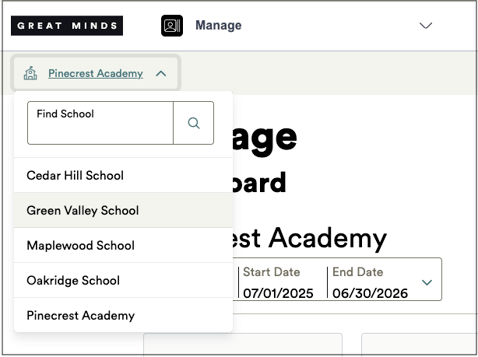
2. If your account is associated with multiple schools, select the desired school from the drop-down at the top left.
3. Select the Staff icon.
3. Locate the user that requires an additional role and select the kebab icon next to their name.
4. If the user is a teacher, you can select Add Administrator Role to add a school or district administrator role to their account.

Only district administrators have the option to add the district administrator role to a user's account.
5. If the user is an administrator, you can select Add Teacher Role to add a teacher role to their account.
After adding a teacher role, the teacher needs to be added to the appropriate classes.
6. In the pop-up, confirm the correct role(s) are selected and click Add to add the role(s) to the user's account.
