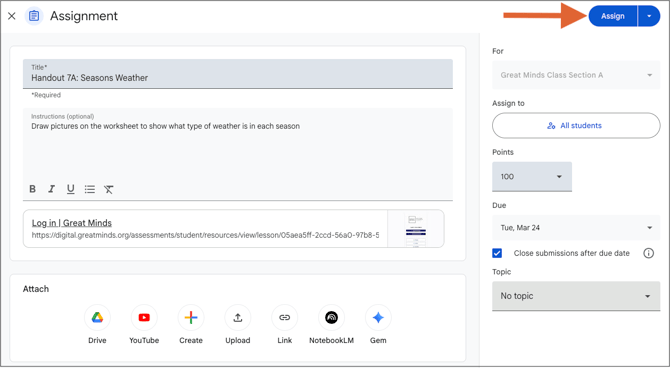
Teachers can share Great Minds resources to their Google Classroom account. This option is available for shareable PDFs, PowerPoints, videos, and digital interactives.
⚠️ This feature is not currently available for digital assessments.
⚠️ To share resources to Google Classroom, an IT administrator may need to allowlist additional domains. See the Technical Specifications page for the complete safelist.
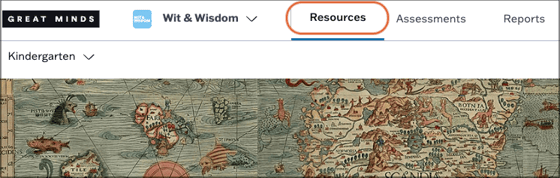
1. Navigate to the Resources page from the main menu.
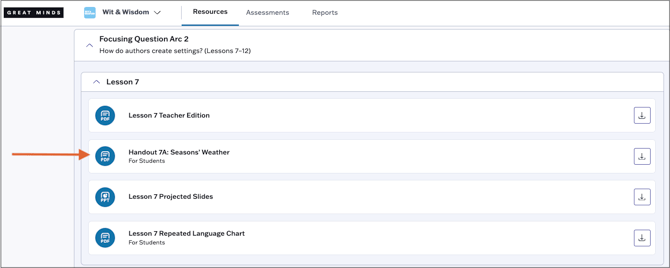
2. Locate and select the resource you wish to share to Google Classroom.
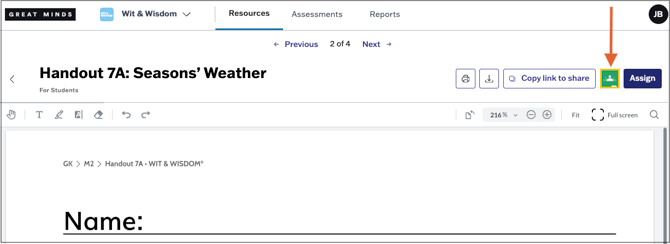
3. Click the Google Classroom button at the top right.
If you're not already logged in to your Google Classroom account, you will be prompted to enter your credentials after clicking the Google Classroom button.
4. Select the Google Classroom class that needs access to the resource.
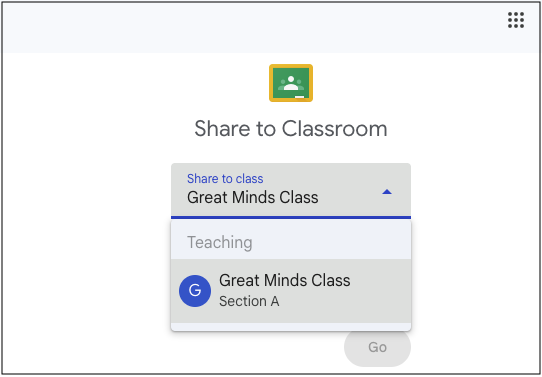
5. Select the desired Share action:
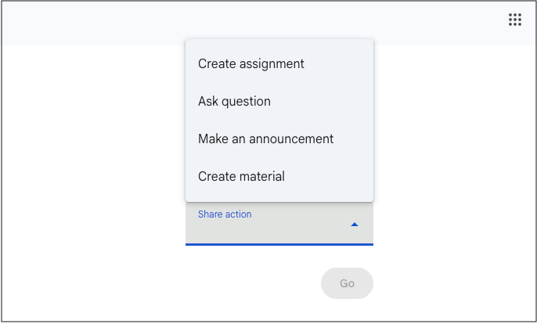
6. Enter the required information on the next screen.
7. Click Assign at the top right. The resource is now visible to students in their Google Classroom account.