
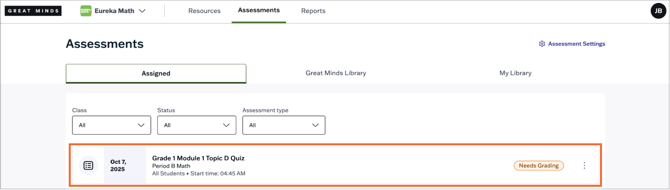
On the Assigned tab, assessments that require scoring will appear with the following labels:
-
Needs Grading indicates the assessment requires manual scoring
-
Review indicates all items have been scored but scoring has not yet been finalized. In Review status, teachers can still edit item scores and/or add feedback as needed.
Select the assessment you need to score from the Assigned tab.
From the Student Monitor:
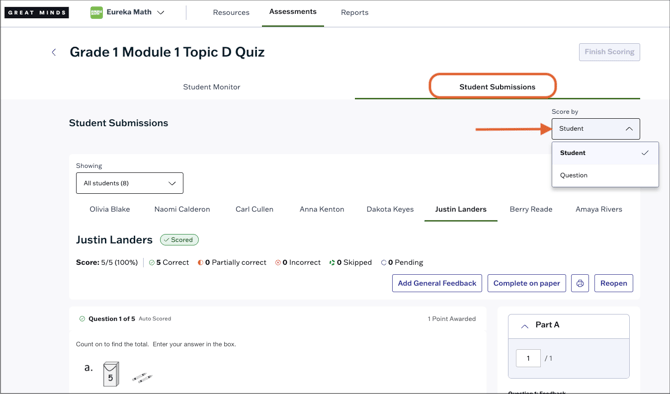
- Select the Student Submissions tab to begin scoring.
- At the top left, you can choose to Score by Question or Score by Student.
Score and Review Assessments
Score by Question
Assessments that require manual scoring will default to this view and by default only questions that require manual scoring will appear.
- For manually scored items, enter an item score to the right of the question. Auto-scored items will automatically populate a score based on the student's response, but you can adjust the number of points earned if desired.
- Use the Feedback field to give feedback directly to the student on the question.
- Select Next Question to score the next question in the assessment.
- To see all questions, not just the ones that require manual scores, disable the Manually scored only toggle at the top of the screen.

Score by Student
The Score by Student tab is useful for viewing all the questions in the assessment (auto-scored and manual) one student at a time.
- For manually scored items, enter an item score to the right of the question. Auto-scored items will automatically populate a score based on the student's response, but you can adjust the number of points earned if desired.
- Use the Feedback field on the right to give item-specific feedback.
- Use the General Feedback option to give assessment-level feedback to the selected student.
- Navigate between student submissions using the tabs at the top of the page.
- You can filter students shown using the drop-down at the top right, which reverts to All Students by default. You can filter for all students who have not started or completed their attempt, or who have not yet been scored.

Finish Scoring
Once you have completed all manual scoring and entered feedback for all students, select the Finish Scoring button at the top right.
⚠️ If one or more students have not submitted the assessment, here are some recommended options to finish scoring, depending on the student's progress on the assessment:
- If the student finished the assessment but did not submit their attempt: If possible, have the student log in to their account and submit their attempt.
- If the student partially completed the assessment: Close the assessment for the individual student, which will force submit the student's attempt.
- If the student did not start the assessment: Administer the assessment on paper and use the Complete on Paper scoring process to input their responses into Great Minds.
