
Teachers can print paper copies of assessments for their students to complete on paper. They can then input student responses into the platform for digital scoring and reporting.
⚠️ This feature is not supported for Equip assessments.
Input Student Responses
The assessment should be assigned and closed as it would be if students were completing the assessment digitally. Teachers can then input their students' responses into Great Minds for scoring and to populate assessment reports.
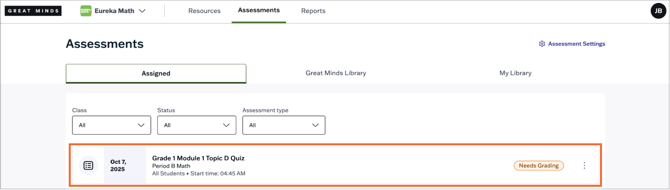
1. Select the assessment that requires scoring from the Assigned tab.
💡Assessments with submissions to score are labeled as Needs Grading.
💡 You first need to close the assessment before you can begin inputting student responses.
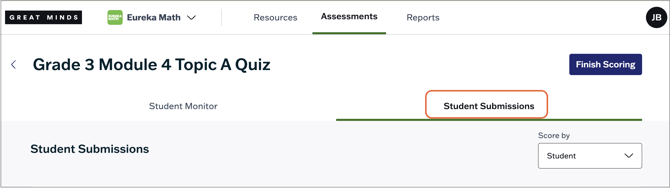
2. Select the Student Submissions tab.
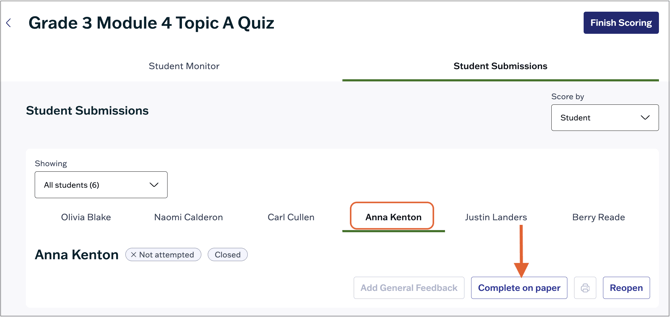
3. Select a student’s name and then click the Complete on paper button at the top right.
4. In the pop-up, verify you have selected the correct student and click Complete Assessment.
5. Click the Start button to begin inputting the selected student's responses.
6. Input the student's response for each question. You can navigate between questions using the question panel on the right. or using the Next and Previous arrows at the bottom right.

7. When you're finished inputting the students' responses, select Review to verify all items have been answered. Then select Finish to finish scoring the assessment.

8. Click Yes to confirm and submit.
Repeat this process for any other students who completed the assessment on paper.
Score and Review Assessments
After you've inputted your students' responses, you can review and score the assessment. Scores for auto graded items will be generated automatically, while teachers will manually input scores for manually graded items. See Score Assessments for a tutorial on scoring assessments.
Click Finish Scoring at the top right when you've finished scoring all students in your class.
