Resources mentioned in the video:
Annotate Resources
Assign Resources
Share Resources to Google Classroom
Assessments
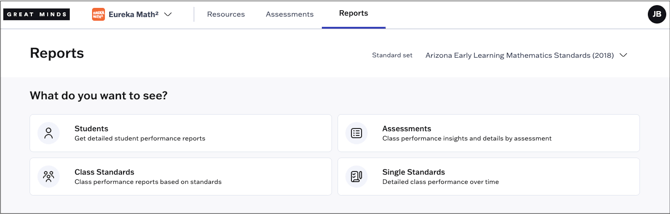
Student Reports
Assessment Reports
Class Standards Reports
Single Standards Report
In Great Minds, teachers have access to three key areas:
Toggle Between Curricula and Roles
If your organization has purchased multiple Great Minds products, you can toggle between curricula using the drop-down menu on the top navigation bar.

If you have both a teacher and administrator role, see Toggle Between Roles for instructions on switching between roles.

Resources
Teachers have access to curriculum materials and resources for all Great Minds products licensed to their organization.
- Select a grade level at the top left
- Navigate to a specific module and other resource categories using the tabs
- Drill down into the selected module using the drop-down menus

You can download individual resources from the resource card or you can select a resource to preview it.

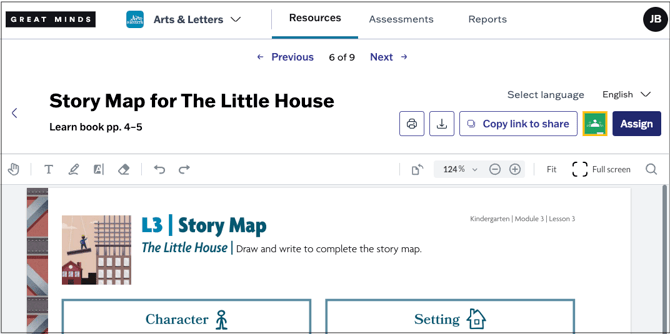
When viewing an individual resource, teachers can:
- Navigate to other resources in the section using the Next and Previous arrows.
- Download or print the resource using the buttons at the top left.
- Use the language drop-down to access the Spanish version of the resource (if available).
- PDF resources can be annotated using the in-platform annotation tools.
Student-facing resources can be shared with students in multiple ways:
- Copy the shareable link to send to students or embed in an LMS
- Share the resource to Google Classroom
- Assign the resource to students in Great Minds
Resource Icons
Each type of resource is indicated by the icon that appears on the resource card. The icon colors correlate with the selected curriculum.

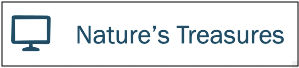
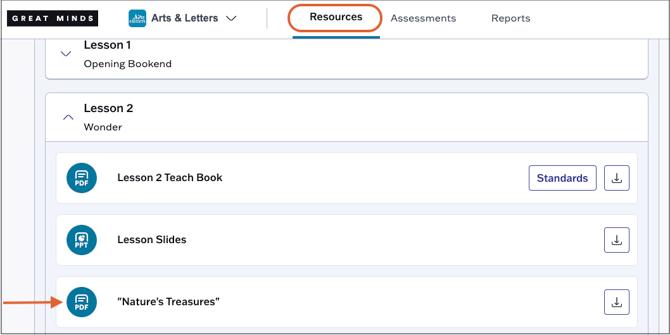
In some PowerPoint decks, you'll see the icon below which indicates that a corresponding digital resource pairs with that slide.
You can locate the corresponding resource in the lesson drop-down on the Resources page.
Assessments
Select Assessments from the top navigation bar. On the Assigned tab, you’ll see scheduled, in-progress and past assessments. You can monitor student progress and score active assessments from this page.
Teachers can access the Great Minds Library where they can view and assign Great Minds authored assessments.
For curricula that support assessment customization, they can customize assessments and access custom assessments shared with them by an administrator in My Library.
For more information on administering and scoring assessments, see the Assessments section of the Help Center.

Reports
In Reports, teachers can access visual assessment reports for their classes. For more information on each type of report, see the below articles: